
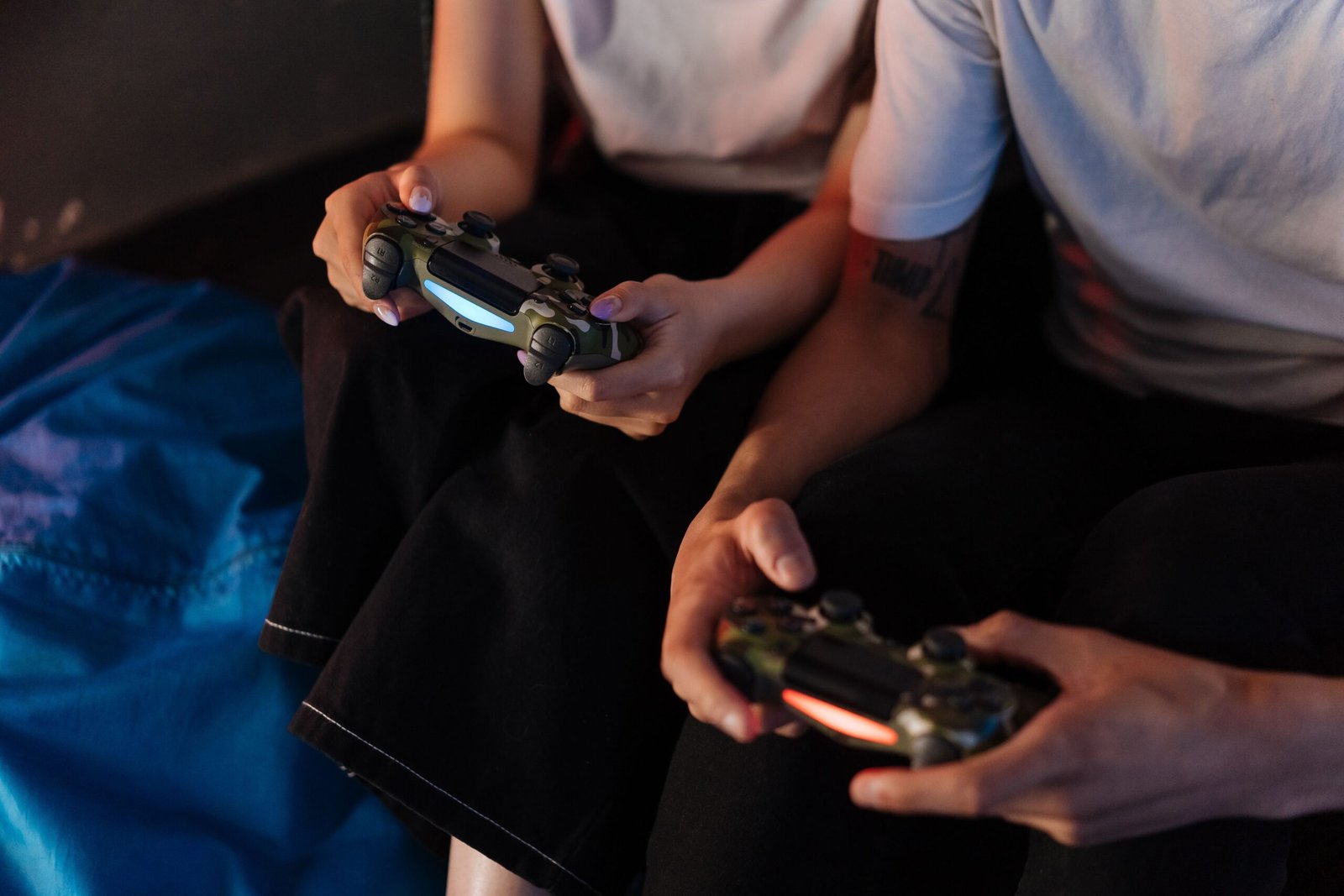
In high-speed action video games like Sekiro, Devil May Cry, or Street Fighter, success hinges on sub-second reaction windows. If there is a delay between pressing a button on your controller and seeing your character dodge or parry on screen, your mechanical skill suffers—no matter how fast your reflexes are.
This delay is known as input lag. It is the total cumulative time it takes for an input signal to travel from your controller or keyboard, process through your PC or console hardware, render on the GPU, and display on your monitor.
If you want to reduce input lag in action games, this guide walks you through essential hardware adjustments, system settings, and display tweaks to eliminate response delay.
Understanding the Input Lag Pipeline
Input latency isn’t caused by a single component—it is built across four distinct stages:
[Controller Input] ──> [System/CPU Processing] ──> [GPU Rendering] ──> [Display Output]
 (Bluetooth/Wired)      (Polling Rate / OS)       (Frame Queue)      (Monitor Response)
To achieve optimal responsiveness, you must minimize latency at every link in this chain.
Step 1: Optimize Display & TV Settings
Your display is frequently the single largest contributor to input latency, especially when gaming on a living room TV.
-
Enable “Game Mode”: Modern TVs apply heavy post-processing effects (smooth motion interpolation, noise reduction, dynamic contrast) that add anywhere from 50ms to 100ms of latency. Turning on Game Mode bypasses these processors, dropping latency down to 10ms–15ms.
-
Turn On Auto Low Latency Mode (ALLM): Consoles like the PS5 and Xbox Series X automatically trigger ALLM on compatible HDMI 2.1 displays to ensure the lowest latency profile is selected.
-
Use High Refresh Rate Monitors (120Hz / 144Hz / 240Hz): Higher refresh rates shorten the display buffer time between rendered frames:
-
60Hz Monitor: ~16.6ms frame refresh window
-
120Hz Monitor: ~8.3ms frame refresh window
-
240Hz Monitor: ~4.1ms frame refresh window
-
Step 2: Fine-Tune In-Game Video Settings
In-game graphics settings significantly impact processing time before frames are sent to the monitor.
Disable V-Sync (Vertical Synchronization)
Standard V-Sync prevents screen tearing by forcing your GPU to wait until the display finishes its refresh cycle before delivering the next frame. This queue adds 1 to 3 frames of lag (~16ms to 50ms).
-
The Fix: Turn V-Sync OFF in your game settings. Instead, rely on hardware-level G-Sync (NVIDIA) or FreeSync (AMD) alongside Variable Refresh Rate (VRR) on your monitor or TV.
Enable Low-Latency Technologies
Modern graphics drivers feature dedicated latency reduction pipelines:
-
NVIDIA Reflex / AMD Anti-Lag: Ensures the CPU does not queue render work ahead of the GPU, maintaining low system latency even during intense graphic loads. Turn NVIDIA Reflex to “On + Boost” in supported action games.
Avoid Heavy Frame Generation (DLSS 3 / FSR 3)
While Frame Generation boosts visible FPS by interpolating AI-generated frames between real ones, it does not lower input latency. In fact, processing AI frames slightly increases input lag. Rely instead on standard spatial upscaling (DLSS Super Resolution or FSR) set to “Quality” or “Performance.”
Step 3: Controller & USB Polling Rate Optimization
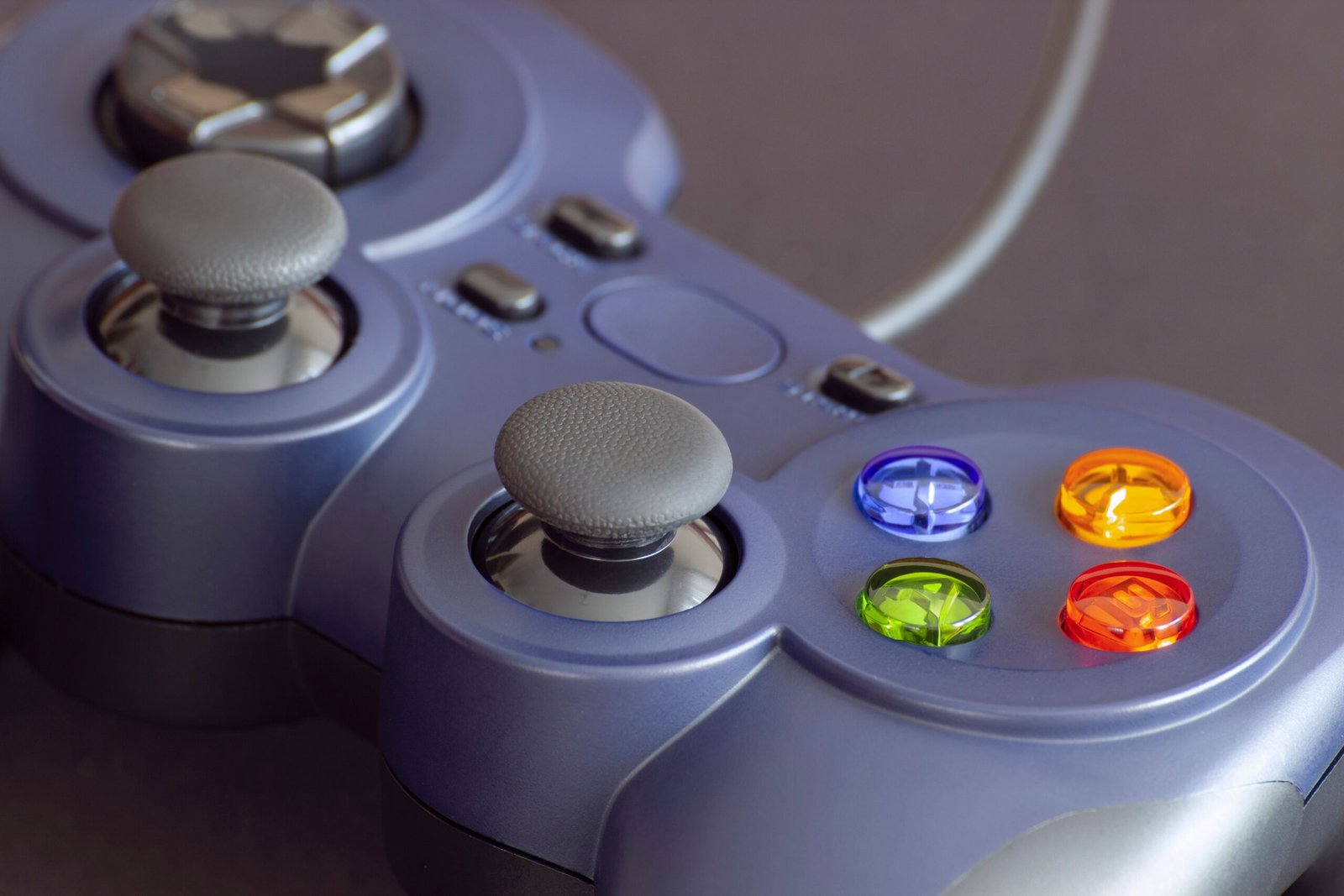
The physical device in your hands can introduce latency before processing even begins.
Wireless Bluetooth Connection (High Jitter / Variable Latency)
             vs.
High-Polling Wired USB Connection (Stable Low Latency)
-
Switch to Wired USB Connections: Bluetooth connections are susceptible to signal interference and variable polling jitter. Plug your controller in directly via a quality USB cable.
-
Increase Controller Polling Rate (PC): By default, standard gamepads report inputs at 125Hz to 250Hz (~8ms to 4ms interval). On PC, utilities like SCT / Hidusbf or specialized controller software can overclock polling rates up to 1000Hz (1ms interval).
-
Use Microswitch Face Buttons: Mechanical switches actuate faster than traditional rubber membrane pads, shaving off physical key-travel time.
Step 4: System & GPU Control Panel Tweaks
Apply these system-level configurations to keep frame pacing consistent:
NVIDIA Control Panel
-
Open NVIDIA Control Panel > Manage 3D Settings.
-
Set Low Latency Mode to Ultra.
-
Set Power Management Mode to Prefer Maximum Performance.
-
Set Max Frame Rate to slightly below your monitor’s refresh rate (e.g., 138 FPS on a 144Hz display) to avoid GPU saturation queues.
AMD Radeon Software
-
Open Radeon Software > Graphics Settings.
-
Enable AMD Radeon Anti-Lag.
-
Enable Radeon Chill (optional for capping max frame rates).
Input Lag Reduction Checklist
Follow this summary checklist to get your setup combat-ready:
| Optimization Layer | Recommended Action | Potential Latency Reduction |
| TV / Display | Switch to “Game Mode” / Enable ALLM | 40ms – 80ms |
| In-Game Sync | Turn V-Sync OFF; use G-Sync / FreeSync | 15ms – 40ms |
| GPU Driver | Enable NVIDIA Reflex (On+Boost) / Anti-Lag | 10ms – 25ms |
| Controller | Connect via USB cable / Overclock to 1000Hz | 4ms – 10ms |
| Frame Rate | Increase resolution scaling for higher FPS | 8ms – 15ms |
By clearing display buffers, disabling V-Sync queues, and optimizing your controller polling rate, you eliminate response lag. Every block, parry, and dodge will execute the exact millisecond you press the button.