

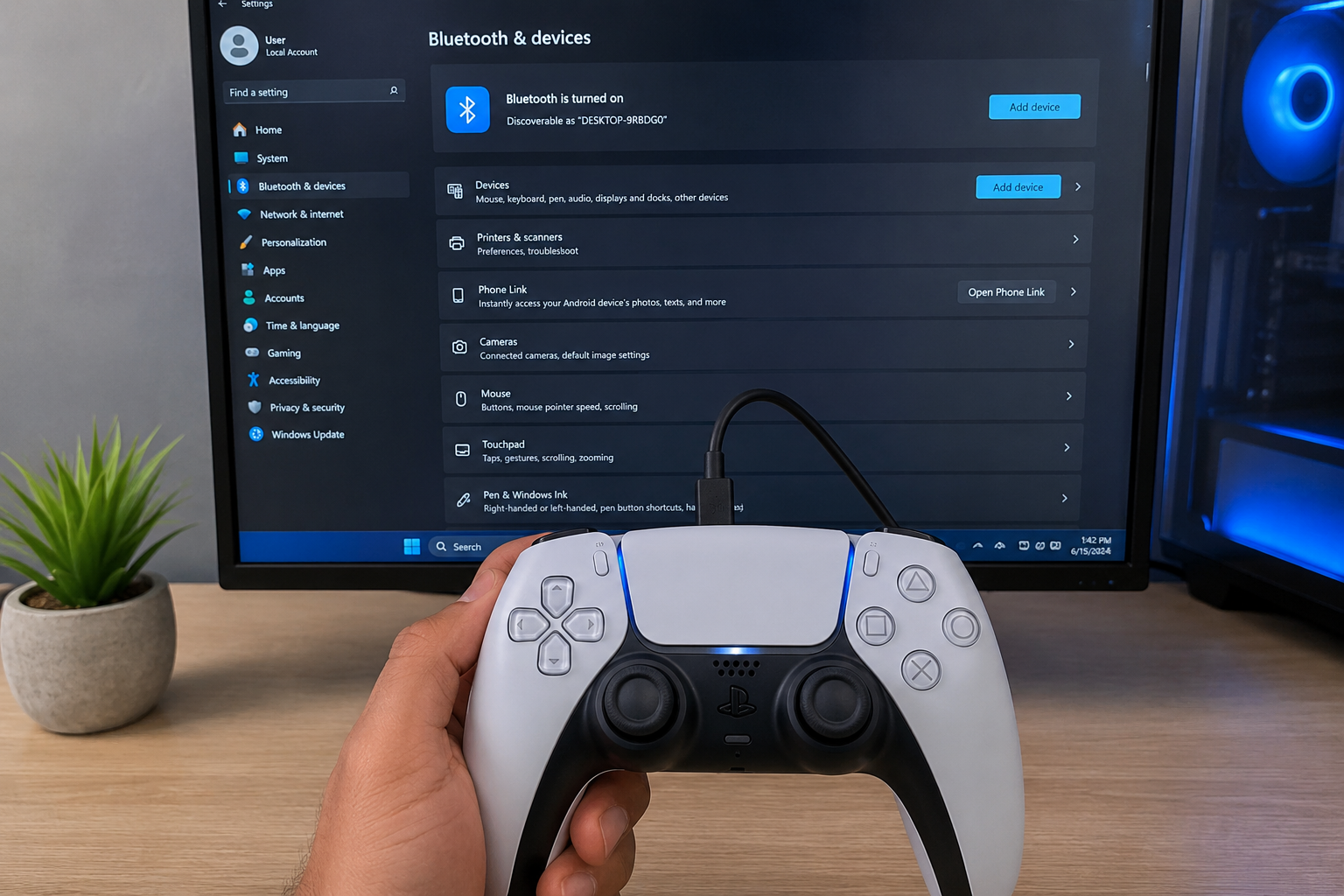
To connect a PS5 DualSense controller to a PC, plug it in with a USB-C data cable — Windows 10 and 11 detect it instantly as “Wireless Controller.” For wireless, hold the PS + Create buttons together until the light bar double-flashes, then pair it from Settings → Bluetooth & devices → Add device. That covers the connection. Whether you get adaptive triggers and haptic feedback depends on the game and your setup — and that is where most guides stop short.
This article walks you through both connection methods, shows exactly which DualSense features you keep on each, and fixes the issues that actually keep people stuck.
What You’ll Need
- A PS5 DualSense controller (or DualSense Edge — the process is identical)
- A USB-C data cable (see the warning below) or a PC with Bluetooth 4.0+ built-in or via a USB dongle
- Windows 10 or Windows 11 (both work; Windows 11 handles the pairing UI more cleanly)
The USB cable trap most guides skip
The DualSense doesn’t ship with a cable in the PS5 box. If you’re grabbing a random cable from a drawer, know that a lot of USB-C cables sold for phones are charging-only — they carry power but no data. A charging-only cable will light the controller up but Windows will never see it.
Fix: use the cable that came with your PS5 console (that one is a data cable), or buy any USB-C cable rated for data transfer. USB-C to USB-A works fine on older PCs; USB-C to USB-C works on newer ones.
Method 1: Connect via USB (Recommended)
Wired is the shortest path to the most features. Adaptive triggers, haptic feedback, the controller’s built-in speaker, and the 3.5 mm headphone jack all work best over USB.
- Plug one end of your USB-C data cable into the DualSense.
- Plug the other end into any USB port on your PC.
- Wait 5–10 seconds. Windows installs the driver silently and the light bar turns solid blue.
- Confirm it worked: press Windows key + R, type
joy.cpl, hit Enter. You should see “Wireless Controller” listed. Click Properties → Test and press buttons to confirm inputs register.
That’s it. No app, no login, no driver download. If it doesn’t show up, jump to the troubleshooting section — 90% of “won’t connect” cases come down to a cable, port, or reset.
Method 2: Connect via Bluetooth (Wireless)
Wireless is more convenient but sacrifices some features. Read the parity table below before you commit to going cable-free.
- Make sure your PC has Bluetooth. Open Settings → Bluetooth & devices. If there is no Bluetooth toggle, your PC has no adapter — grab any cheap USB Bluetooth dongle that supports data (not audio-only).
- Turn the controller fully off first. If it’s been used on a PS5 or PC recently, it may try to auto-reconnect to that device and skip pairing mode entirely. Hold the PS button for about 10 seconds until the light bar goes dark.
- Enter pairing mode: hold the PS button and Create button (the small one, top-left, next to the D-pad) at the same time. Keep holding for around 3 seconds until the light bar starts double-flashing white.
- On your PC, click Add device → Bluetooth, then select Wireless Controller from the list. If a PIN prompt appears, enter 0000.
- The light bar turns solid blue once paired.
If pairing fails or the controller appears then vanishes, that’s almost always a stale Bluetooth cache — remove the device from Windows and try again, or reset the controller (steps below in troubleshooting).
What You Actually Get: Feature-by-Feature Reality Check
Here is the part most guides skip. Connecting is easy. Getting all of the DualSense’s fancy hardware working on Windows is a different story.
| Feature | USB (Native) | Bluetooth (Native) | With Steam Input | With DS4Windows | With DSX / DSX+ |
|---|---|---|---|---|---|
| Basic buttons & sticks | ✅ | ✅ | ✅ | ✅ (as Xbox pad) | ✅ |
| Rumble (basic vibration) | ✅ | ✅ | ✅ | ✅ | ✅ |
| Adaptive triggers | ✅ supported games only | ⚠️ limited | ⚠️ often disables triggers | ⚠️ emulated | ✅ full control |
| Haptic feedback | ✅ supported games only | ❌ | ⚠️ game-dependent | ❌ | ✅ (USB); Bluetooth on DSX+ |
| Gyro aiming | ❌ | ❌ | ✅ | ✅ | ✅ |
| Touchpad as mouse | ❌ | ❌ | ✅ | ✅ | ✅ |
| Controller speaker | ✅ | ⚠️ | ✅ | ⚠️ | ✅ |
| 3.5 mm headphone jack | ✅ | ❌ | ✅ (USB) | ✅ (USB) | ✅ (USB) |
| Light bar customization | ❌ | ❌ | ✅ | ✅ | ✅ |
Takeaway: for maximum features, plug in via USB and let Steam Input handle most games. Only reach for DS4Windows if a game refuses to see PlayStation controllers. Reach for DSX only if you specifically want adaptive triggers or custom haptics in a game that doesn’t support them natively — and DSX+ (paid) is currently the only way to get haptic feedback and controller audio over Bluetooth on PC.
Setting It Up in Steam
Steam handles the DualSense better than any other launcher, and for most people this is the only setup step that matters.
- Open Steam and go to Steam → Settings → Controller.
- Turn on PlayStation Controller Support — set it to Enabled.
- Below that, tick Enhanced PlayStation Support if you want gyro aiming, touchpad mapping, and per-game custom bindings.
- Test it in Big Picture Mode: your controller should light up and a Steam notification should confirm “PS5 Controller Detected.”
Important trade-off nobody explains up front: Steam Input conflicts with games that have native DualSense support — Death Stranding Director’s Cut, God of War Ragnarök, Spider-Man Remastered, Returnal, Metro Exodus Enhanced Edition, and most Sony first-party PC ports. For those games, adaptive triggers and haptics only fire with Steam Input turned off for that specific game.
Fix: right-click the game in your library → Properties → Controller → Disable Steam Input. You lose Steam’s remapping and gyro features for that game, but you gain the DualSense’s native trigger resistance and precise haptics. Pick per game.
Non-Steam Games: When to Use DS4Windows vs DSX
Games from Epic Games Store, GOG, Ubisoft Connect, EA App, and Battle.net don’t route through Steam Input. Many still detect the DualSense natively; others expect an Xbox controller and ignore anything with PlayStation branding. Two tools cover this gap.
DS4Windows (Free)
Best for games that only accept Xbox input. DS4Windows disguises your DualSense as a virtual Xbox 360 controller, so any game with basic controller support will read it.
- Download only the actively maintained Ryochan7 build from GitHub. Older mirrors and lookalike downloads will cause detection loops or install adware.
- Install ViGEmBus when prompted — it’s the driver that lets DS4Windows create the virtual Xbox pad.
- Launch DS4Windows before the game. If the game already opened, close it and reopen with DS4Windows running.
- If you also use Steam, enable “Hide DS4 Controller” in DS4Windows settings. Otherwise both the real and the emulated controller feed input into the game at the same time and you’ll see doubled inputs (menu jumping two spots at once is the classic symptom).
DSX (Paid, around $4 on Steam)
Best for people who want to add adaptive triggers or custom haptics to games that don’t support them, or who play primarily over Bluetooth. DSX is currently the only option for haptic feedback and controller audio over Bluetooth — that specific feature sits behind the DSX+ subscription tier. For USB-only use, standard DSX is enough.
Honest advice: you probably don’t need DSX if the games you play already behave well out of the box. Buy it when you have a specific missing feature you want back, not preemptively.
Common Problems (and Real Fixes)
Windows detects the controller, then it disappears
Usually a driver handshake failure. Right-click Start → Device Manager, expand Human Interface Devices, find any entry called “HID-compliant game controller” — right-click, Uninstall device. Unplug the controller, reboot, plug it back in. Windows reinstalls the driver clean.
Nothing shows up at all over USB
Test the cable in a different port first. If nothing changes, the cable is charging-only in about 80% of cases. Swap for a known data cable — the one that came in the PS5 box, or the cable you use to move files between your phone and PC.
Bluetooth pairing fails or times out
Reset the controller. On the back of the DualSense, near the top-left of the Sony logo, there is a small recessed hole. Straighten a paperclip, push it in, and hold for 5 seconds. This wipes the controller’s internal pairing memory. Now plug it in via USB, unpair any old “Wireless Controller” entries in Windows Bluetooth settings, and retry pairing from scratch.
Doubled inputs (menus scroll two spots at once)
Steam and DS4Windows are both feeding input into the game at the same time. Pick one path:
- Steam route: close DS4Windows entirely.
- DS4Windows route: enable Hide DS4 Controller inside DS4Windows, or in Steam disable PlayStation Configuration Support for that specific game.
Adaptive triggers and haptics don’t work
Three things to check, in order:
- Are you connected via USB? Bluetooth kills haptics natively — DSX+ is the only current workaround.
- Does the game natively support DualSense features? If not, no PC setup will help — the code simply isn’t there. PCGamingWiki keeps a maintained list of adaptive-trigger-supported PC games worth cross-referencing.
- Is Steam Input disabled for that specific game? For native ports like Death Stranding or Returnal, Steam Input has to be off for adaptive triggers to fire.
Controller drifts or inputs stick
Not a connection problem — the stick module is worn or dirty. Try compressed air around the stick base first. If drift persists, the DualSense’s stick modules are user-replaceable but the repair isn’t casual; consider Sony warranty service if the controller is under a year old, or a DualSense Edge with replaceable stick modules if you’re a heavy user.
FAQ
Do I need DS4Windows to use a PS5 controller on PC?
No. Windows 10, Windows 11, and Steam all support the DualSense natively. Install DS4Windows only when a specific game refuses to read PlayStation controllers and requires Xbox-style input.
Does the PS5 controller work wirelessly on PC without a special dongle?
Yes, over standard Bluetooth. Sony doesn’t sell a dedicated PC dongle, but any PC with Bluetooth 4.0 or newer pairs directly. If your PC has no Bluetooth, any generic USB Bluetooth data adapter will do.
Do adaptive triggers work on PC?
Yes, but only in specific games and mostly over USB. Death Stranding Director’s Cut, God of War Ragnarök, Returnal, Spider-Man Remastered, Metro Exodus Enhanced Edition, and a growing list of Sony PC ports support them natively. Third-party tools like DSX can also force adaptive trigger effects in games that don’t support them.
Does haptic feedback work over Bluetooth on PC?
Not natively — Windows drops haptics on Bluetooth connections. DSX+ (the paid tier of the DSX app) is currently the only way to get DualSense haptic feedback wirelessly on Windows.
Can I use the DualSense headphone jack on PC?
Yes, but only over USB. Windows exposes the DualSense as an audio device — select it as your output in Settings → System → Sound. Bluetooth mode doesn’t expose the jack.
Will using a PS5 controller on PC affect its PS5 pairing?
Yes. The DualSense only remembers one active pairing at a time. When you go back to your PS5, plug the controller in with USB and press the PS button — that re-pairs it with the console.
Is the DualSense Edge different to connect?
No. The Edge uses the same connection process — USB or Bluetooth — and works with the same PC tools. Its extra features (back paddles, replaceable sticks) are configured on the controller itself, not through PC software.
Must Read: Best Action Games for Low-End PCs in 2026
Final Word
Connecting a PS5 controller to a PC is a 30-second job. The real friction is in the details of which features you keep along the way. Plug in with a data cable if you want the fullest experience. Go wireless if you want the freedom and don’t mind losing haptics. Reach for Steam Input first, DS4Windows only when a game refuses PlayStation controllers, and DSX only when you’re chasing a specific feature you’re missing.
Once it is set up, you can forget it. The DualSense stays paired, Windows treats it like any other gamepad, and — with adaptive triggers on in Death Stranding or God of War Ragnarök — you’ve got one of the nicest controllers ever made working across your entire Steam library.